
Supported File Formats, Batch Limits & Tool Specifications
All 194 CompressFly tools process files locally in your browser without uploading them to a server. Most tools that accept multiple files have no fixed file count limit, and practical batch size depends on your files, browser and device. The table below shows folder import and batch limits across six tool categories.
Last updated:
Folder import and batch limits
Tools with folder import let you select a folder or drag it in if your browser supports folder drag and drop.
| Tool category | Folder import | Files per job |
|---|---|---|
| Image compression | Supported | Multiple files with no fixed file-count limit. |
| Image conversion | Supported | Multiple files with no fixed file-count limit. |
| Image editing | Resize Image, Flip Image and Change Image DPI | Those three tools and Remove Background accept multiple images with no fixed file-count limit. The other 14 tools accept one image at a time. |
| PDF tools | Not supported | 32 tools accept multiple files with no fixed file-count limit. Some, such as Merge PDF, combine those files into one PDF. The other 10 tools, including Crop PDF and Redact PDF, accept one PDF at a time. |
| GIF tools | GIF Compressor and Resize GIF | Both accept multiple GIFs with no fixed file-count limit. GIF Maker and related tools accept up to 500 source frames, counting each still image as one frame. Crossfade exports use up to 250 source frames. Other GIF editors accept one GIF at a time. |
| Video tools | Not supported | One video at a time. |
Even without a fixed file-count limit, practical batch size depends on your files, settings, available browser memory and device performance.
Large PDFs, long animations and high-resolution videos may require substantially more memory than their saved file sizes suggest. A task that works on a desktop may be too demanding for a phone or a browser with limited available memory.
Compression also does not guarantee a smaller result. An already optimized source, a different format or quality settings can produce a file of similar or greater size.
How format support works
CompressFly has tools for images, PDFs, GIFs and videos. Each has its own accepted inputs, output formats and settings. A format supported by one tool may not be accepted by another, so check the file picker and options on the tool you plan to use.
The sections below cover common formats and practical limitations. They are not a promise that every variation of a file can be processed. Damaged files, unusual encodings and features outside a tool's scope can prevent a file from opening or change the result.
Supported image formats and output options
Supported image input formats
The image converter supports dozens of input formats, from everyday photos to design files, specialist images and camera RAW files. These include JPG/JPEG, PNG, GIF, WebP, AVIF, HEIC/HEIF, BMP, TIFF, JXL and JPEG 2000 (JP2), as well as PSD, PSB, XCF, TGA, HDR, DDS, DICOM (DCM) and FITS.
Camera RAW inputs include CR2, CR3, NEF, NRW, ARW, SR2, ORF, PEF, RAF, RW2, DNG and many more. The RAW converter also lets you choose between using an embedded JPEG preview, when available, and processing the RAW image.
Available image output formats
Output options are JPG, JPEG, PNG, BMP, WebP, AVIF, JFIF, JXL, TIF, TIFF and DDS. ICO output opens the dedicated image-to-ICO tool. Other image tools have their own accepted formats and output options.
Key configurable parameters across image tools include 1–100% quality sliders, lossless PNG/WebP compression, target-size presets (20 KB, 50 KB, 100 KB, 200 KB, 500 KB, 1 MB), DPI modification (72–1200 DPI), TIFF multi-codec compression (LZW, ZIP/Deflate, JPEG), 8-bit RLE BMP compression, SVG precision optimization (levels 2–5), DDS texture encoding (BC1/DXT1, BC3/DXT5, or RGBA8 with 1–31 mipmap levels and power-of-two resizing), and folder-preserving ZIP packaging.
What may change during conversion
- Transparency: JPG cannot store a transparent background. Choose an output format that supports transparency when you need to keep it, and check the tool's result.
- Animation and multiple images: an animated or multi-image source does not mean every output will retain all frames or images. Use a tool intended for that task.
- Quality and color: lossy encoding, resizing and format changes can alter detail or appearance. Converting to a lossless format does not restore detail already lost from the source.
- Metadata: camera details, location data, color profiles and other embedded information are not guaranteed to survive every operation. Check the tool's metadata options and the downloaded file.
If you need a specific upload size, use a target-size compression tool and check the final file. Reaching a smaller target can require a quality or dimension change, and not every source can meet every target.
PDF documents and page features
PDF to Image exports PDF pages as JPG, PNG, or WebP. Image to PDF creates PDFs from images such as JPG, PNG, WebP, HEIC/HEIF, and TIFF. You can fit the PDF pages to your images or choose A1 through A5, Letter, Legal, Ledger, or Tabloid.
The PDF tools also include compression presets for 100 KB, 500 KB, and 1 MB, text extraction to Markdown (.md) or TXT, and page organization and interleaving. Use N-up PDF to place 2, 4, 8, or 16 pages per sheet or lay out pages for a folded booklet. You can also apply continuous Bates numbering across files, flatten forms, remove XMP metadata, permanently redact PDFs, or add AES-256 password protection.
- Passwords: if a tool requests a password to open a protected PDF, you need the correct password. Processing is not a way to recover an unknown password.
- Scanned pages: a scanned page may contain only an image. Extracting text requires readable text content or a tool that explicitly provides OCR.
- Forms and interactive features: do not assume that forms, links, bookmarks, annotations or digital signatures will remain usable after every operation. Review any features your workflow relies on.
- Image output: when you export a PDF page as an image, any text on the page becomes part of the image.
A newly generated PDF should not be assumed to retain the source document's password protection. Check the output and use Protect PDF if you need to add a password.
GIFs and animation
The GIF tools include batch GIF compression (1–100% quality), batch pixel/percentage resizing, frame extraction (up to 500 frames exported to PNG, JPG, or WebP), playback speed adjustment (0.25×–4×), aspect-ratio cropping, reverse playback, and a multi-frame GIF Maker supporting up to 500 static images or animation frames (up to 250 frames with crossfade), per-frame delay, custom text layers, and palette controls.
GIF has a limited color palette, so gradients and detailed photos can look different from the originals. Animation settings such as dimensions, frame count and timing affect both file size and processing work. Exporting a frame as JPG or PNG produces a still image.
If you are turning a video into a GIF, the GIF will not contain an audio track. Review the animation's appearance, speed and looping after export.
Video formats, audio and playback
The Video Compressor accepts MP4, MOV, WebM, AVI, MKV, and DRM-free M4V and exports H.264 MP4. You can set a custom CRF from 18 to 45, keep the original resolution, or reduce it to 1080p, 720p, 480p, or 360p.
The Video Converter also accepts FLV, WMV, MPEG/MPG, 3GP, and Ogg video (.ogv). For video output, you can keep the source frame rate or choose 24, 25, 30, 50, or 60 fps. Separate tools create animated GIFs at 5–20 fps or animated WebP files. The audio extractor exports MP3 or WAV with selectable sample rates of 22.05, 44.1, or 48 kHz and mono or stereo sound.
A video extension identifies the file container, but the video and audio inside it also use particular codecs. Two MP4 files can therefore behave differently. A file may fail to preview in a browser or use an encoding the processing module cannot read; support for a container does not guarantee support for every file using that extension.
Re-encoding can change picture and audio quality. Do not assume extra audio tracks, subtitles, chapters or metadata will be carried into the result. Audio-only output has no video, and an animation output does not retain sound. Check playback in the application or device where you intend to use it.
Representative browser batch test
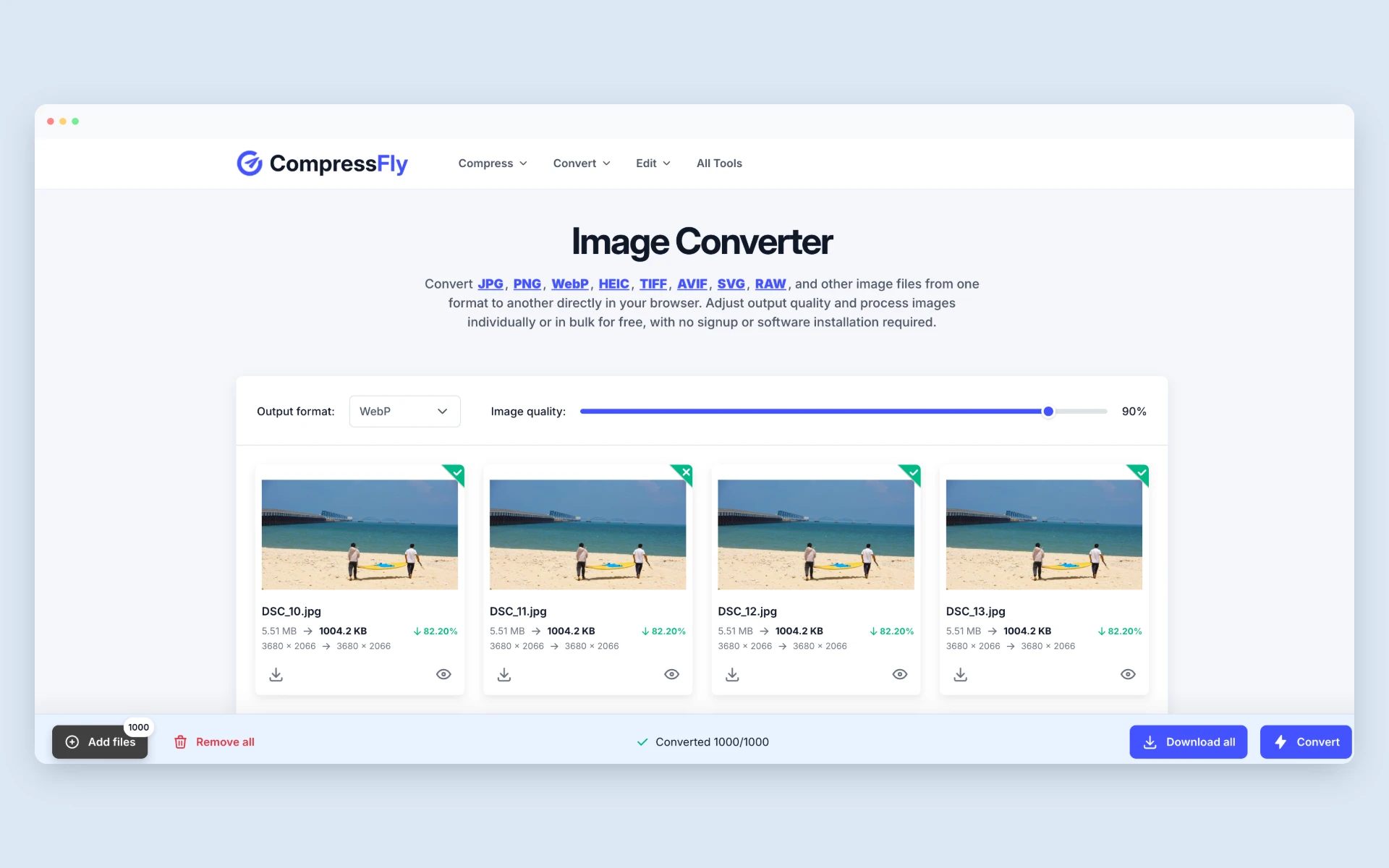
To document one real browser-based batch conversion, we converted 1,000 JPG images to WebP on a 13-inch MacBook Pro (2022) with an Apple M2 chip and 16 GB of unified memory.
| Workflow | JPG to WebP |
|---|---|
| Source files | 1,000 JPG images |
| Source size | 5.51 MB per image |
| Dimensions | 3680 × 2066 pixels |
| Output setting | WebP at 90% quality |
| Result | Converted 1,000/1,000 |
| Test date |
Browser compatibility and troubleshooting
Use an up-to-date browser. Available media support, memory and download behavior vary by browser and device, so every tool is not guaranteed to work in every environment.
If a job fails, try one file first, reduce the batch or source dimensions where appropriate, and close other memory-heavy tabs. Make sure the tool's resources have finished loading. Trying another current browser or a device with more memory may help.
For a persistent issue, contact us with the tool URL, file format, approximate file size, browser and device. You do not need to send a private source file to describe the problem. For more about where processing takes place, see How CompressFly Works.