
How to Change Image DPI Online in 3 Easy Steps
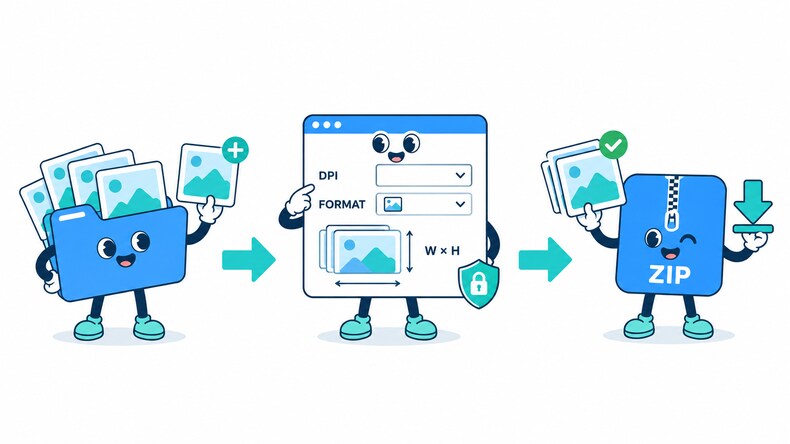
Follow these three simple steps to change image DPI. No software installation required. Free and secure.

Choose Your Images
Select JPG, JPEG, PNG, BMP, TIF, or TIFF images from your device, choose an entire folder, or drag and drop multiple files into the browser.

Choose a DPI Value
Select a common DPI value such as 72, 150, 300, or 600, or enter a custom whole number. Keep the original format or choose another supported output format.

Change DPI and Download
Click “Change DPI,” review the original and updated DPI values and image dimensions, then download files individually or save the completed batch as a ZIP file.
How Does the CompressFly Image DPI Converter Work?
The CompressFly image DPI converter applies the selected DPI value and writes a new image file while keeping the pixel width and height unchanged. Changing a 72 DPI image to 300 DPI does not add pixels or create new image detail. Instead, software that reads the density setting may interpret the same pixels at a different physical print size.
The converter accepts JPG, JPEG, PNG, BMP, TIF, and TIFF images and lets you keep the original format or choose another supported output format. Because a new file is written, its encoding and file size may change even though the pixel dimensions remain the same. Images are processed directly in your browser, individually or in bulk, with no files sent to a server.
What "in your browser" means
- No image files are sent to a server
- DPI changes are processed locally on your device
- Updated images are downloaded directly from your browser
What Does Changing Image DPI Actually Do?
DPI affects how the same pixels may be interpreted for printing. It is different from resizing an image or reducing its file size.
Pixel Dimensions Stay the Same
A 3000 × 2400 pixel image remains 3000 × 2400 pixels after its DPI value is changed.
The Intended Print Size Changes
At 300 DPI, 3000 × 2400 pixels correspond to approximately 10 × 8 inches. At 150 DPI, the same pixels correspond to approximately 20 × 16 inches.
No New Detail Is Created
Increasing the stored DPI value does not recover detail or turn a small source into a genuinely high-resolution image.
DPI Is Not File Compression
Changing DPI updates image density information. Resizing changes pixel dimensions, while compression changes how image data is encoded to reduce file size.
Bulk Image DPI Converter Online
Change the DPI of 300+ supported images in one batch. Add images individually or select an entire folder, apply the same DPI value and output format, review the updated DPI and pixel dimensions, then download the completed files together as a ZIP file.
Bulk DPI processing runs directly in your browser. No account, credit card, or software installation is required.
Why Use CompressFly to Change Image DPI?
Fast DPI Changes
Update image DPI directly on your device without waiting for files to upload to or download from a server.
Batch DPI Processing
Change the DPI of 300+ images with the same settings and download the completed batch as a ZIP file.
Multiple Image Formats
Change the DPI of JPG, JPEG, PNG, BMP, TIF, and TIFF images and keep the original format or choose another supported output.
Review Before Downloading
Review the original and updated DPI values, pixel dimensions, output format, and file size before downloading.
Private & Secure
Your images are processed locally in your browser and are not uploaded to a server.
Free Access
Use the image DPI converter for free without signing up or entering credit card details.
Image DPI Converter FAQ
How do I change image DPI online?
Change image DPI online in three steps: 1. Select or drag and drop one or more JPG, JPEG, PNG, BMP, TIF, or TIFF images into the browser. 2. Choose a preset DPI or enter a custom whole number, then select an output format if needed. 3. Click “Change DPI,” review the updated values and dimensions, then download files individually or save the completed batch as a ZIP file.
How do I convert an image to 300 DPI?
Select the image, choose the 300 DPI preset, and click “Change DPI.” The output keeps the original pixel dimensions, so confirm that the image contains enough pixels for your intended print size.
Does changing DPI change the pixel dimensions?
No. The output keeps the same pixel width and height. Software that reads the DPI value may calculate a different physical print size from those pixels.
Does converting a 72 DPI image to 300 DPI improve quality?
No. Changing 72 DPI to 300 DPI does not add pixels, restore missing detail, or make a low-resolution source genuinely sharper. Print quality still depends on the available pixel dimensions and the final print size.
What happens to the print size when I change DPI?
The intended print size is calculated by dividing the pixel dimensions by the DPI value. For example, a 3000 × 2400 pixel image corresponds to approximately 10 × 8 inches at 300 DPI or 20 × 16 inches at 150 DPI.
What image formats can I use with the DPI converter?
The image DPI converter accepts JPG, JPEG, PNG, BMP, TIF, and TIFF files. You can keep the source format or export the result as JPG, JPEG, PNG, BMP, WebP, TIF, or TIFF.
What is the difference between DPI and PPI?
PPI describes the number of image pixels used per inch at a given print size, while DPI technically describes printer dots per inch. Image files and submission requirements commonly use the term DPI for the stored density value, so this tool follows that familiar wording.
Can I change the DPI of multiple images at once?
Yes. Add 300+ supported images or select an entire folder, apply the same DPI and output settings, then download the updated files individually or together as a ZIP file.
Is the image DPI converter free?
Yes. It is free to use, with no daily limits or watermarks. No account or credit card is required.
Are my images uploaded to a server?
No. CompressFly changes image DPI directly in your browser, so the files are processed locally and are not uploaded to a server.
Can I change image DPI without Photoshop?
Yes. Select an image in the browser, choose the required DPI, start the change, and download the updated file without installing Photoshop or another desktop application.