
How to Convert X3F to JPG in 3 Easy Steps
Follow these three simple steps to convert Sigma X3F photos to JPG. No software installation required. Free and secure.

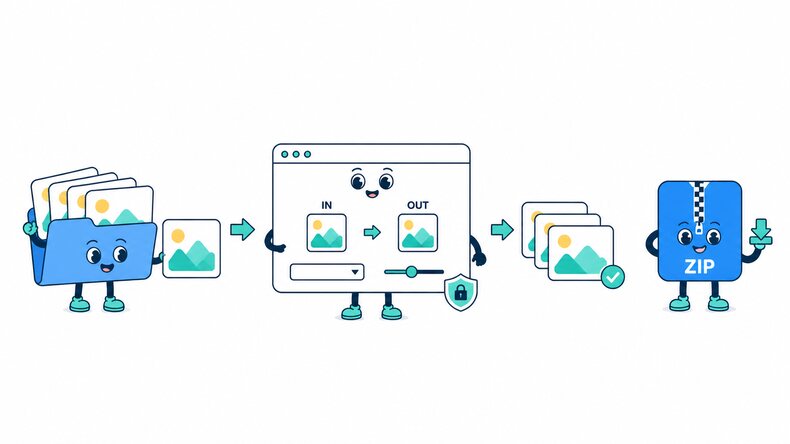
Add X3F Photos
Select Sigma X3F files from your device, choose a photo folder, or drag and drop your camera files into the browser.

Convert to JPG
JPG is selected by default. Adjust the quality setting if needed, then start converting your X3F photos.

Preview and Download
Check the converted photos and JPG file sizes, then download images individually or together as a ZIP file.
How Does the X3F to JPG Converter Work?
The CompressFly X3F to JPG converter attempts to decode supported Sigma X3F files directly in your browser and creates a JPG from the image it can render. X3F files contain data from Sigma cameras with Foveon sensors, whose layered image data and processing differ from many other camera RAW formats. Compatibility can vary by camera generation, and an embedded preview may be used when the full X3F data cannot be decoded.
Compare the JPG resolution, orientation, color, tonal balance, and fine texture carefully, because a preview or general RAW decoder may not match Sigma-specific processing. Keep the X3F source for later development in compatible software. Conversion remains local for individual photos or batches, with no server upload or signup.
What "in your browser" means
- No X3F photos are uploaded to a server
- Sigma X3F files are converted locally on your device
- Completed JPG photos download directly from your browser
Bulk X3F to JPG Converter
Convert 300+ supported X3F photos to JPG in one batch. Select files from a Sigma photo shoot or add a folder, apply the same JPG quality setting, and download the completed photos together as a ZIP file.
Batch conversion lets you process a collection of Sigma photos without exporting each file separately. Everything runs directly in your browser, with no signup, credit card, or software installation required.
Why Use CompressFly to Convert X3F to JPG?
Fast X3F to JPG Conversion
Process Sigma X3F photos on your device without waiting for large camera files to upload to a server.
Batch Sigma Photo Conversion
Convert 300+ supported X3F photos to JPG at once and download the completed images as a ZIP file.
No Software Installation
Convert X3F files in your browser without installing Sigma Photo Pro or a desktop RAW editor.
Free Access
Use the X3F to JPG converter for free without signing up or entering credit card details.
Preview Before Downloading
Review the color, detail, and file size of converted Sigma photos before saving the JPG images.
Private & Secure
Your Sigma X3F files are processed locally in your browser and are not uploaded to a server.
Related RAW and JPG Tools
X3F to JPG Converter FAQ
How do I convert X3F to JPG online?
Convert Sigma X3F photos in three steps: 1. Add your X3F files or select a folder. 2. Keep JPG selected, adjust quality if needed, and start the conversion. 3. Preview the JPG images and download them individually or together as a ZIP file.
Is the X3F to JPG converter free?
Yes. Convert X3F photos to JPG for free with no registration or credit card required.
What is an X3F file?
X3F is a RAW photo format used by Sigma cameras with Foveon sensors. It stores camera image data for processing in compatible photo software, rather than a finished JPG image.
Can I convert X3F to JPG without Sigma Photo Pro?
Yes. Supported X3F files can be converted directly in your browser without installing Sigma Photo Pro. This is an image converter, not a replacement for the RAW editing controls in Sigma's software.
Can I convert multiple X3F photos to JPG at once?
Yes. Add 300+ supported Sigma X3F photos or select a folder, apply the same JPG quality setting, and download the completed images together as a ZIP file.
How to convert X3F to JPG without losing quality?
Choose the highest possible output quality setting.
Is there a file size limit, and are my Sigma X3F photos uploaded?
Your Sigma X3F photos are processed locally in your browser and are not uploaded to a server, so there is no server upload limit. The practical limit depends on your device's available memory and processing power, especially for very large images or batches.