
How to Convert WebP Images in 3 Easy Steps
Follow these three simple steps to convert WebP images. No software installation required. Free and secure.

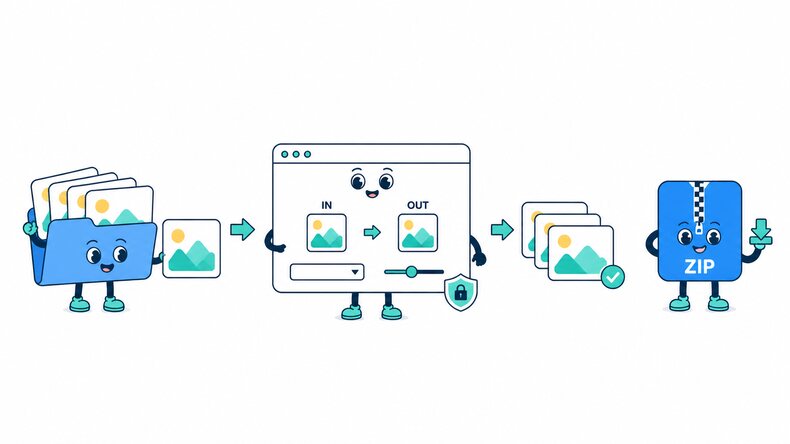
Add WebP Images
Select WebP photos or graphics from your device, choose a folder, or drag and drop files into the browser.

Choose an Output Format
JPG is selected by default. Choose PNG, AVIF, or another available format, adjust quality where applicable, and start the conversion.

Preview and Download
Review the converted images and file sizes, then download the results individually or together as a ZIP file.
How Does the WebP Converter Work?
The CompressFly WebP converter turns WebP photos and graphics into JPG, PNG, AVIF, and other image formats directly in your browser. It reads your WebP images and saves them in the selected output format. Unlike online converters that require file uploads, it uses modern browser technology to process your images locally, individually or in bulk. No files are sent to a server. Smart image conversion makes converting WebP files simple and free, with no signup required.
What "in your browser" means
- No WebP files are uploaded to a server
- Image conversion runs locally on your device
- Converted images download directly from your browser
Bulk WebP Converter Online
Convert 300+ WebP images in one batch. Add photos, downloaded graphics, or an entire folder, choose one output format for the batch, and download the completed images together as a ZIP file.
A collection of WebP images can be converted without opening and exporting each file separately. Everything runs directly in your browser, with no signup, credit card, or software installation required.
Why Use CompressFly's WebP Converter?
Fast WebP Conversion
Process WebP images on your device without waiting for files to upload to or download from a server.
Batch WebP Conversion
Convert 300+ WebP images with one output format and download the completed batch as a ZIP file.
Multiple Output Formats
Convert WebP images to JPG, PNG, AVIF, and other supported formats from one tool.
Easy to Use
Change WebP images to another format through a simple interface, without learning a desktop image editor.
Preview Before Downloading
Review the converted images and their file sizes before saving the results to your device.
Private & Secure
Your WebP images are processed locally in your browser and are not uploaded to a server.
Which Format Should I Convert WebP To?
Choose a format that matches your image and where you need to use it.
JPG for Apps That Require JPEG
JPG is a practical choice for photos when an app or upload form requires JPEG. It does not keep transparent backgrounds.
PNG for Transparent Graphics
PNG suits screenshots, logos, and graphics when you need a format that supports transparency and lossless compression.
AVIF for Web Images
AVIF is an option for websites and apps that support it. Compare the converted image and file size with the WebP before deciding which version to use.
Related WebP Conversion Tools
WebP Converter FAQ
How do I convert WebP images online?
Convert WebP files in three steps: 1. Add your WebP images or select a folder. 2. Choose JPG, PNG, AVIF, or another available output format and start the conversion. 3. Preview the converted images and download them individually or together as a ZIP file.
Is the WebP converter free?
Yes. Convert WebP images for free with no registration or credit card required.
What is a WebP file?
WebP is an image format developed by Google for photos and graphics on the web. It supports lossy and lossless compression, transparency, and animation.
What formats can I convert WebP to?
JPG, JPEG, PNG, AVIF, BMP, and other output formats are available. JPG is selected by default. Choose the format accepted by the app or website where you need the image.
Can I convert JPG or PNG to WebP here?
This page accepts WebP files as input. For the reverse direction, use JPG to WebP or PNG to WebP.
Can I convert multiple WebP files at once?
Yes. Add 300+ WebP images or select a folder, apply a shared output format, and download the completed images together as a ZIP file.
How to convert WEBP images without losing quality?
Choose the highest possible output quality setting.
Is there a file size limit, and are my WebP images uploaded?
Your WebP images are processed locally in your browser and are not uploaded to a server, so there is no server upload limit. The practical limit depends on your device's available memory and processing power, especially for very large images or batches.